Setting up HTTPS
Certificates
In order to set up HTTPS communication for your API, you need to set up an SSL certificate.
As the Business API runs as a server service (and not as a client), a server certificate needs to be installed.
Certificate chain
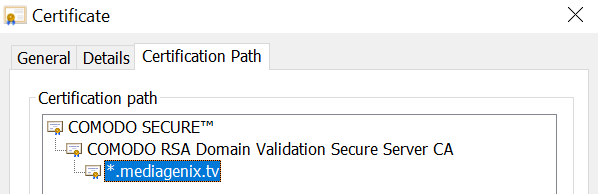
A certificate file can contain one or more certificates. In the example below, the certificate file contains 3 certificates:
- root certificate (COMODO SECURE)
- intermediate certificate (COMODO RSA)
- leaf/server certificate (*.mediagenix.tv)
In this case, we have a certificate chain, where each certificate's authenticity is guaranteed by its parent.
Note that the following workflow has changed as of 2022r3: see release notes of version 2022r3.
Importing the certificate file
To work with certificates, go to the Certificate browser, which is accessible via the submenu 'Permissions and preferences' in the 'Administration' menu of the launcher. Here you can find the available certificates.
| Task | HOW TO |
|---|---|
| Importing a certificate | From the Certificate browser, open any existing certificate to go to the Certificate navigator. To import a certificate, drag and drop this file into the Certificate navigator or import the file via the the File - Import dialog. |
| Enabling a certificate | Use the Enable certificate command from the 'Certificate' menu. This way, the user can define which certificates are 'active' and which ones are ignored. When a new certificate is created, it is disabled by default. Note that server leaf certificates should not be enabled! |
The expected file format of the certificate is Base-64 encoded X.509 (.CER)
As a server, WHATS'ON needs to be able to provide the server certificate, including the full certificate chain up to the root certificate. To achieve this, all certificates of a certificate chain must be imported separately. It is not possible to import a complete chain at once.
To achieve this, the following steps are needed:
- Import and enable the root and all intermediate certificates.
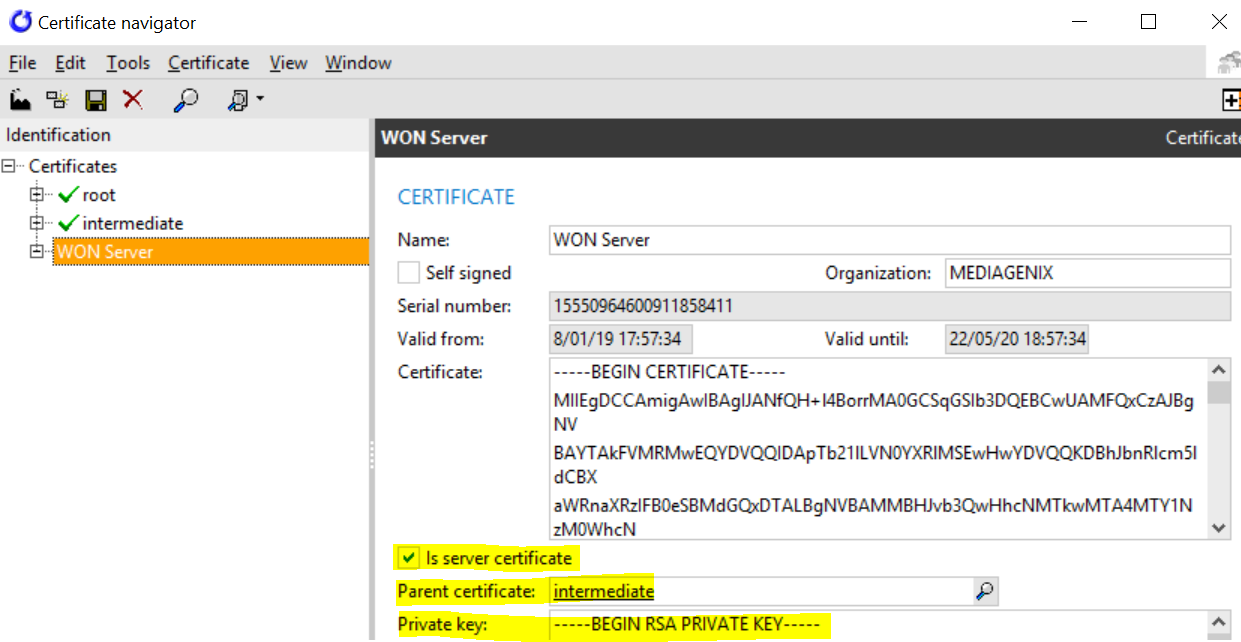
- Import the server (leaf) certificate
- Don't enable this certificate!.
- Tick the Is server certificate checkbox.
- Fill in the server certificate's private key.
- The certificate chain should be rebuilt through the "Parent certificate" field:
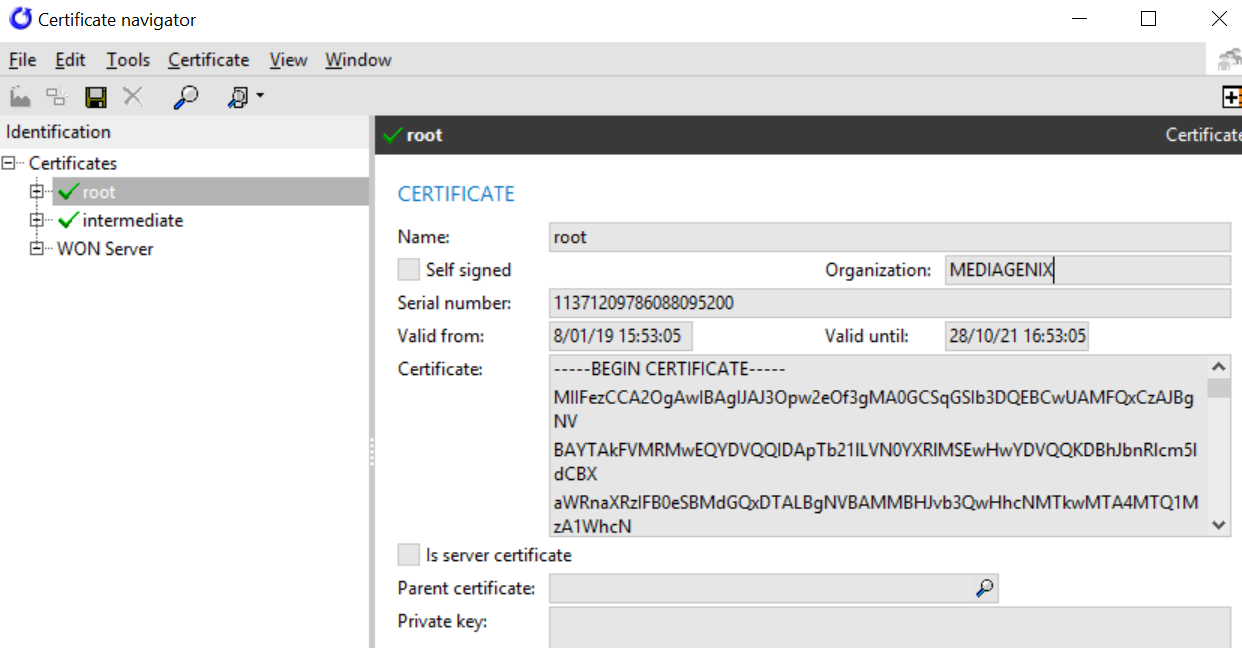
- Root certificates don't have a parent, so no action is needed.
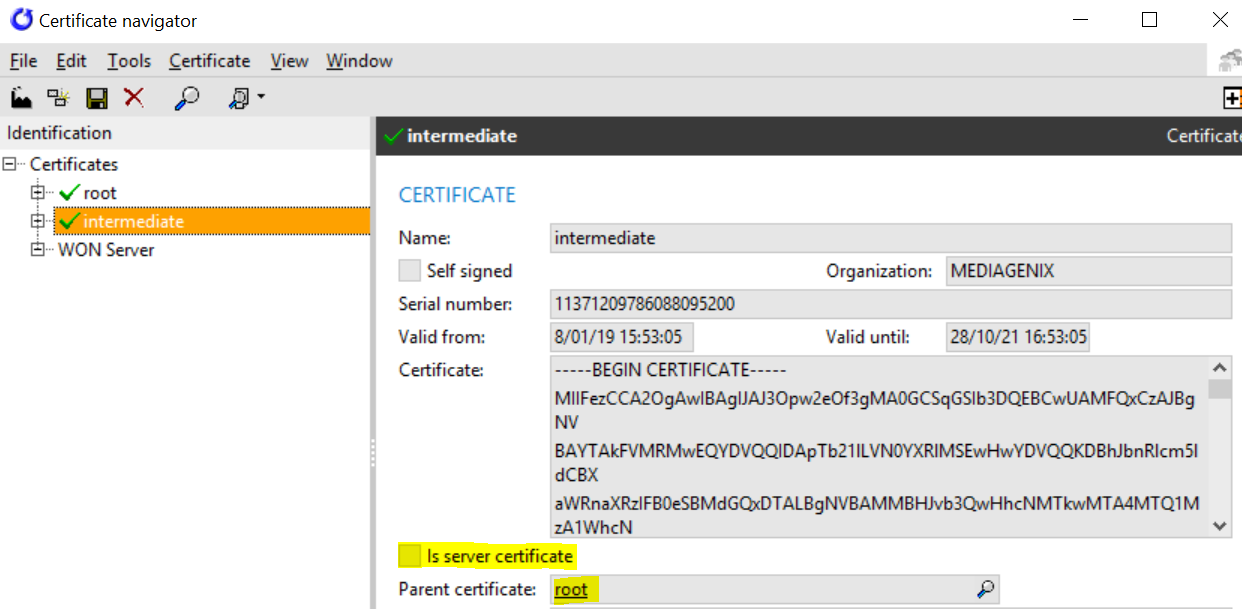
- For each intermediate certificate:
- Tick the "Is server certificate" checkbox.
- Fill in the "Parent certificate" field.
- Untick the "Is server certificate" checkbox.
- For the leaf certificate, fill in the "Parent certificate" field. Leave the "Is server certificate" checkbox checked.
Once imported successfully, the certificate chain looks as follows:
| Certificate | Config |
|---|---|
| Root certificate |
|
| Intermediate certificate |
|
| Server (leaf) certificate |
|
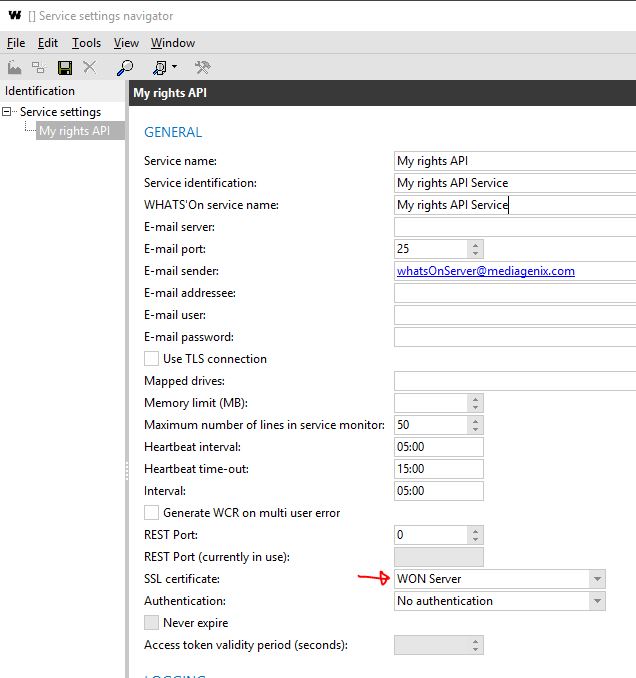
After importing the certificate, it must be selected in the SSL certificate field of the service settings of the Business API service.